
How it works
Something is a Mac app that runs your product and lets you change it from the screen. This page walks through all of it. None of it needs you to know Git, and the words it uses are the ones your developers already say.
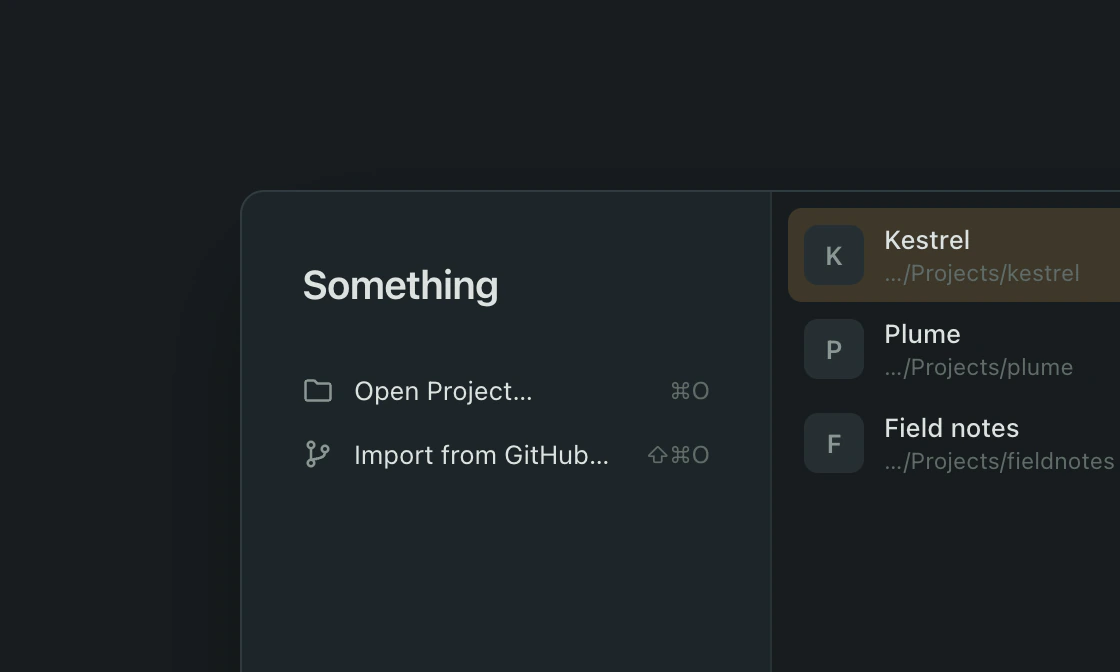
Projects
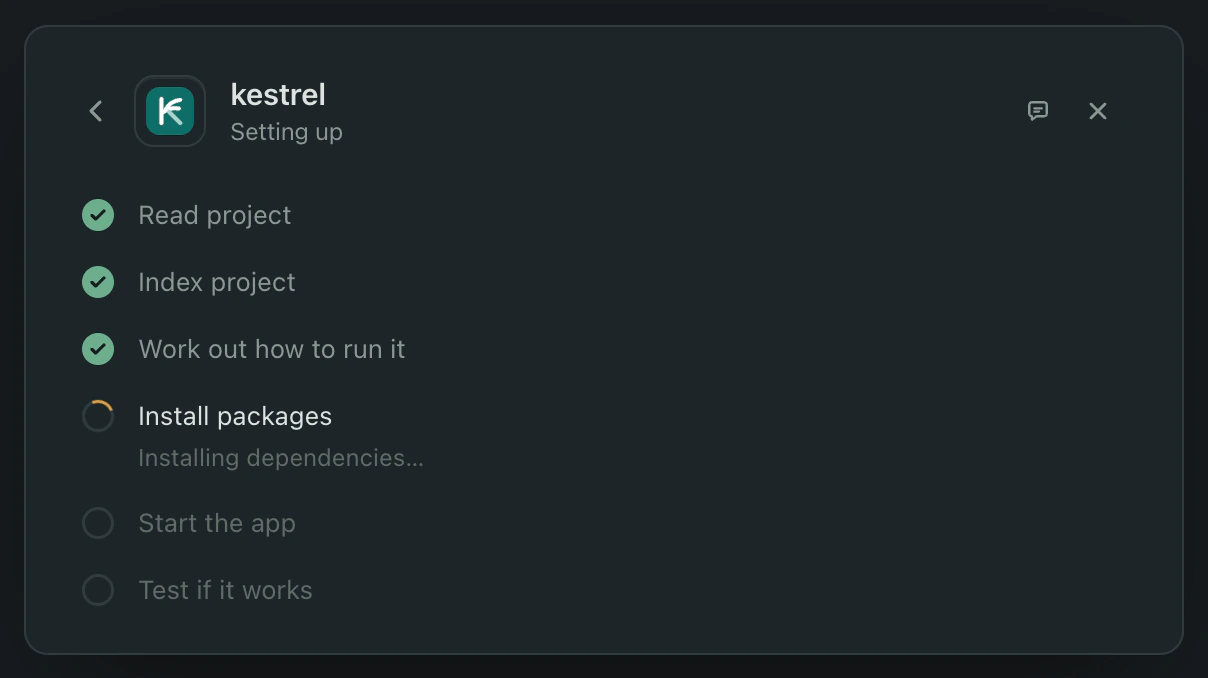
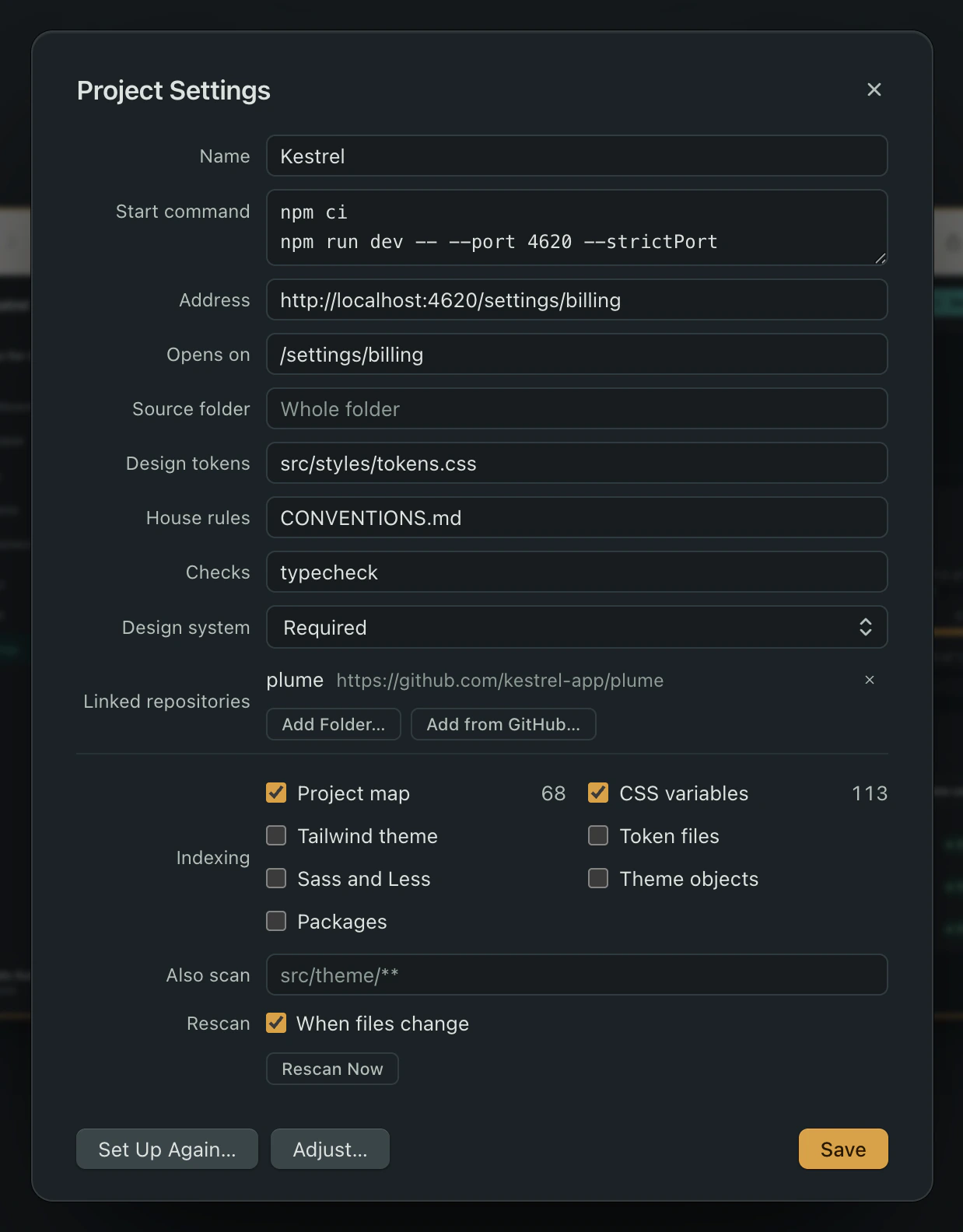
Open a folder, or import from GitHub. The assistant reads the project and works out which command starts the product, where the source lives, which files hold the design tokens, which file states the house rules, and which scripts have to pass after a change. A checklist shows each step as it goes.
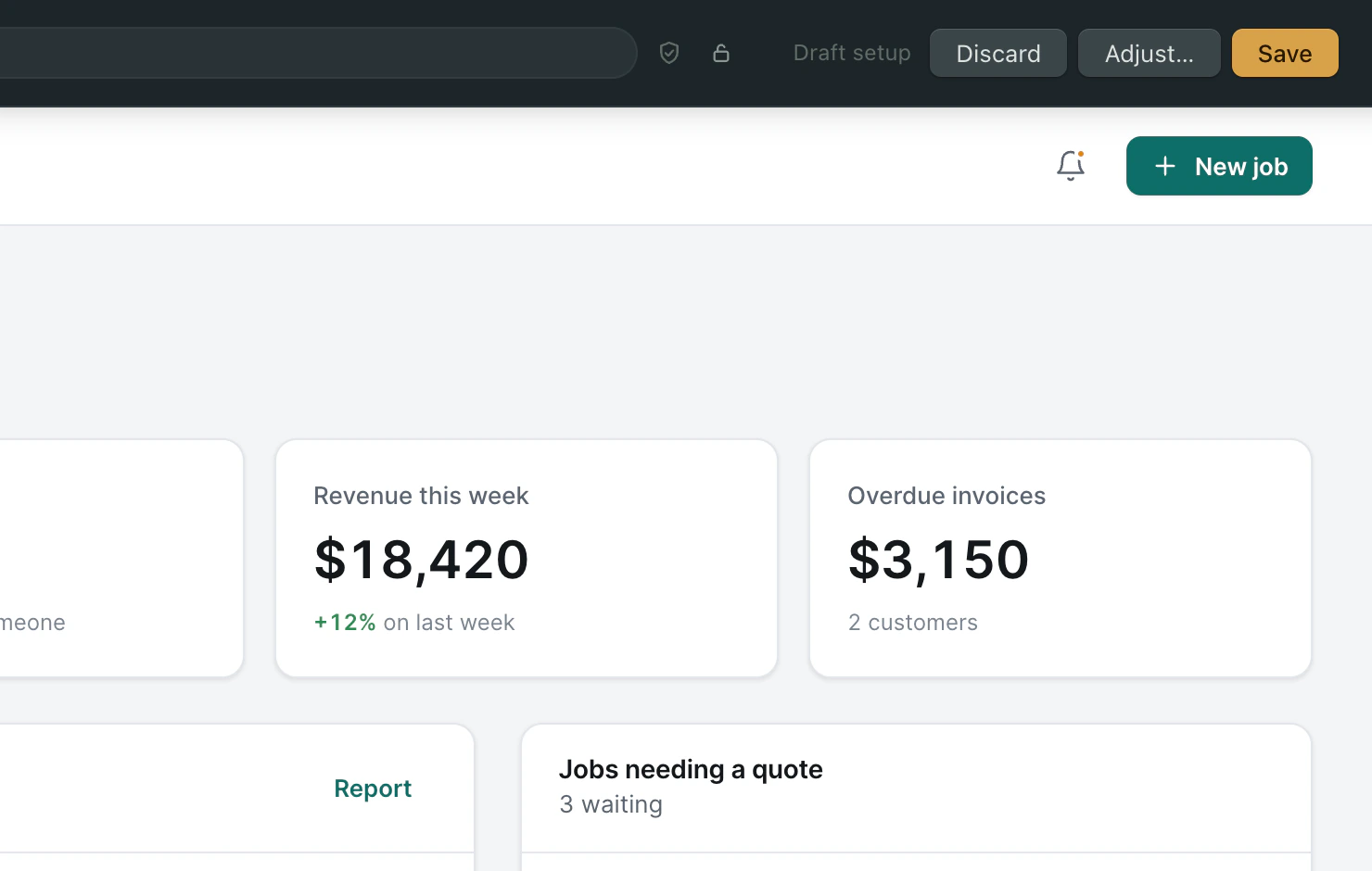
Then the product opens as a draft. Save keeps the setup. Adjust is where you tell it what it missed, a step to run first or a port, and it tries again. Discard throws the draft away. None of it is kept until you save.
What it worked out is written into the project as a small .something folder, so an engineer can read it in a diff and correct it in a pull request like any other file. The next person to open the folder inherits what you approved without asking again. Which projects this Mac knows about stays on this Mac.
The canvas
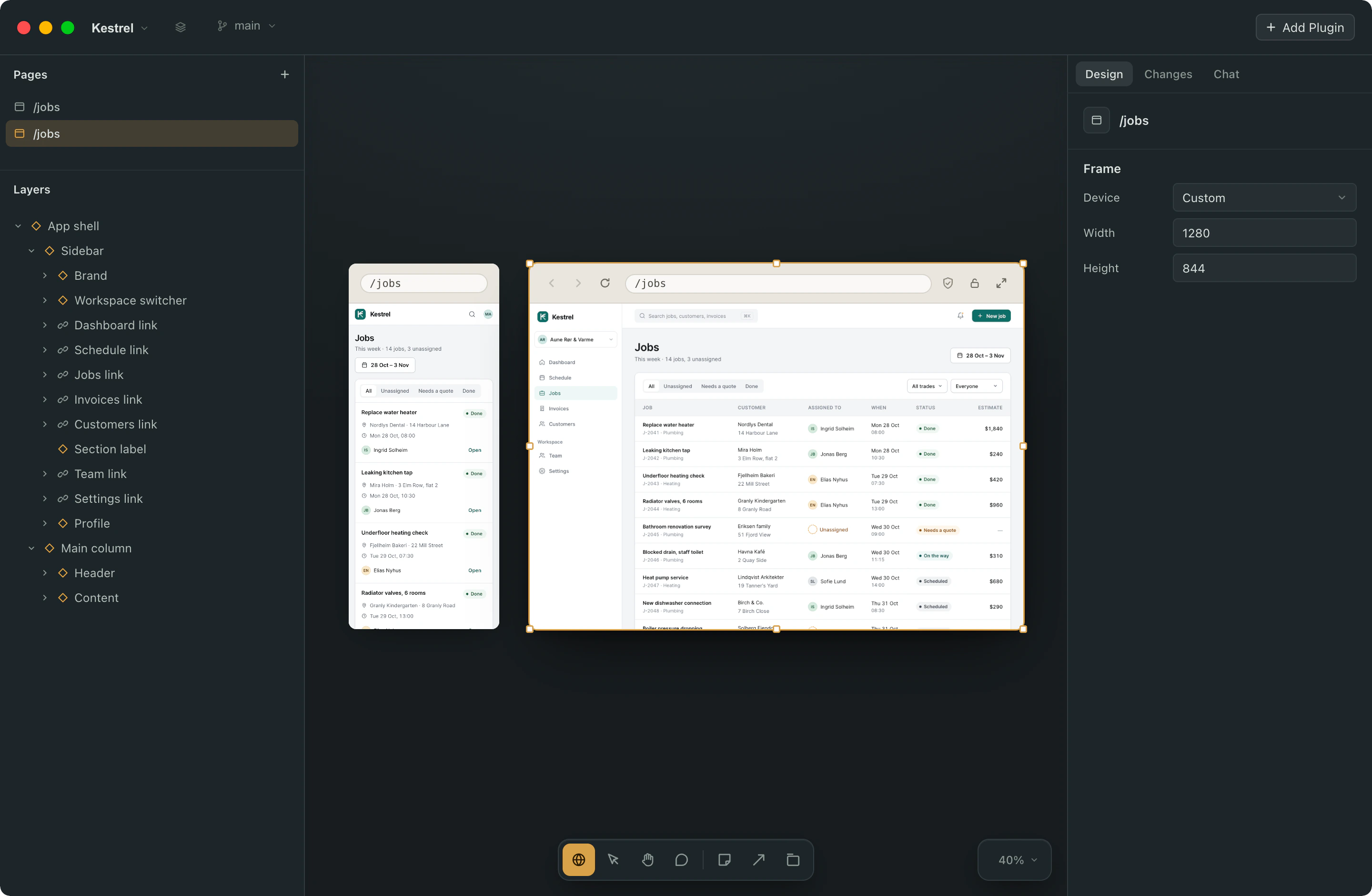
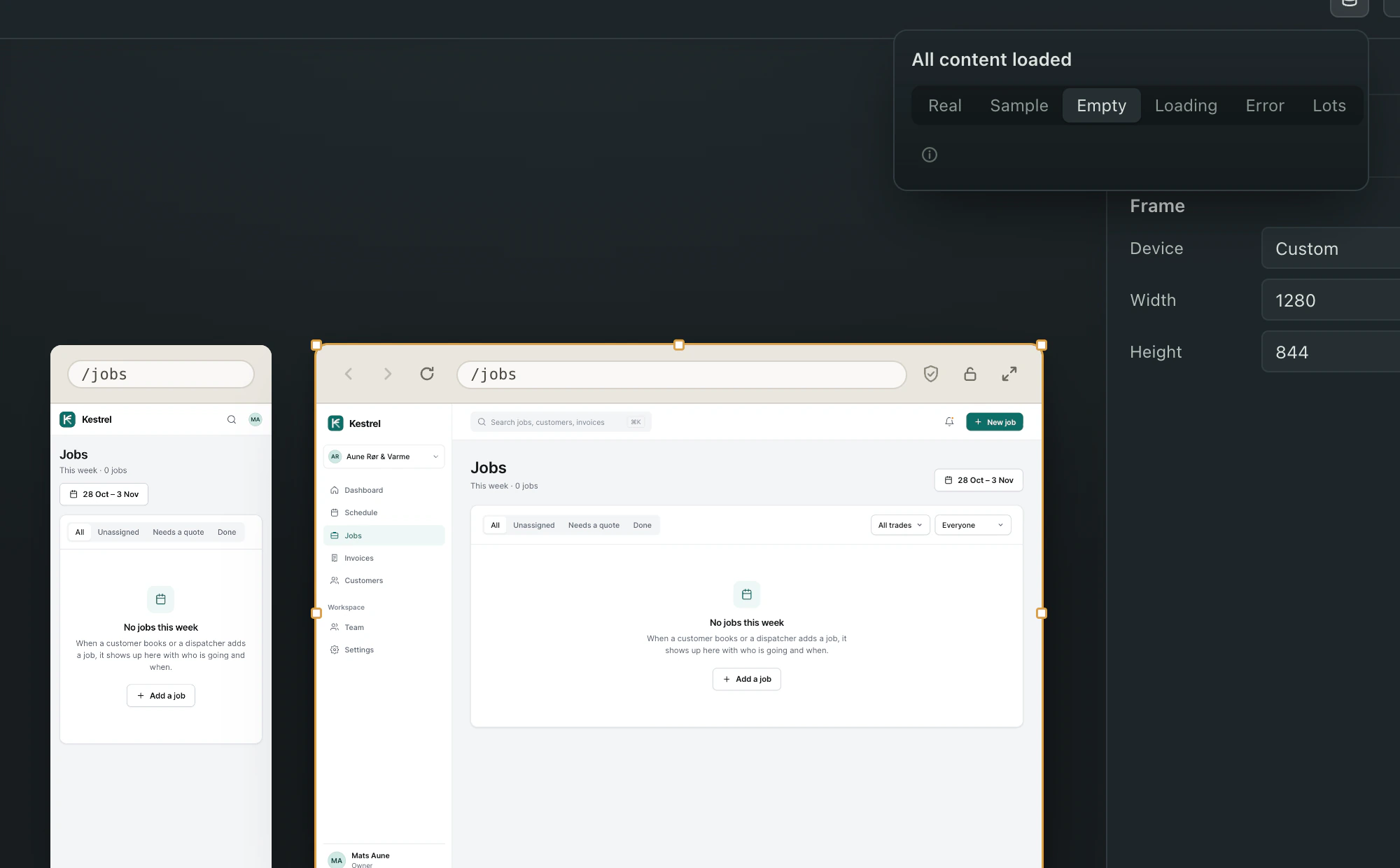
The product is the whole window. No panel holds a permanent column. The canvas sizes itself to the page so you are not scrolling inside a window inside a canvas; set a size by hand and it stops adjusting, because then it is a device you chose. Open the same page as a phone and a desktop side by side, both live. Zoom, a dotted canvas, snap to grid, measuring between elements, and page states: empty, loading, error, and lots.
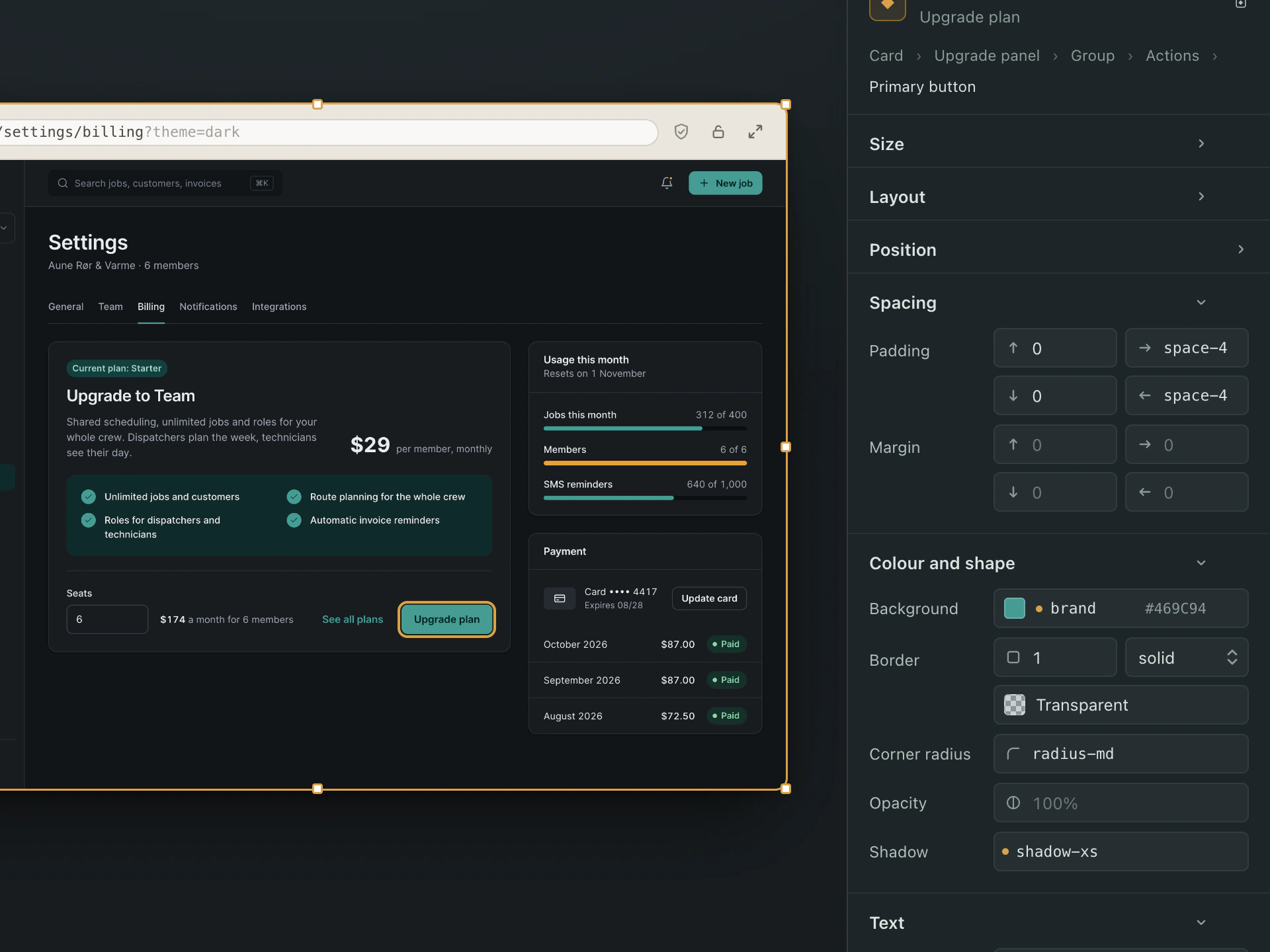
The product's own dark theme shows the way your customers see it, and the panel reads each token as it resolves there.
The design panel
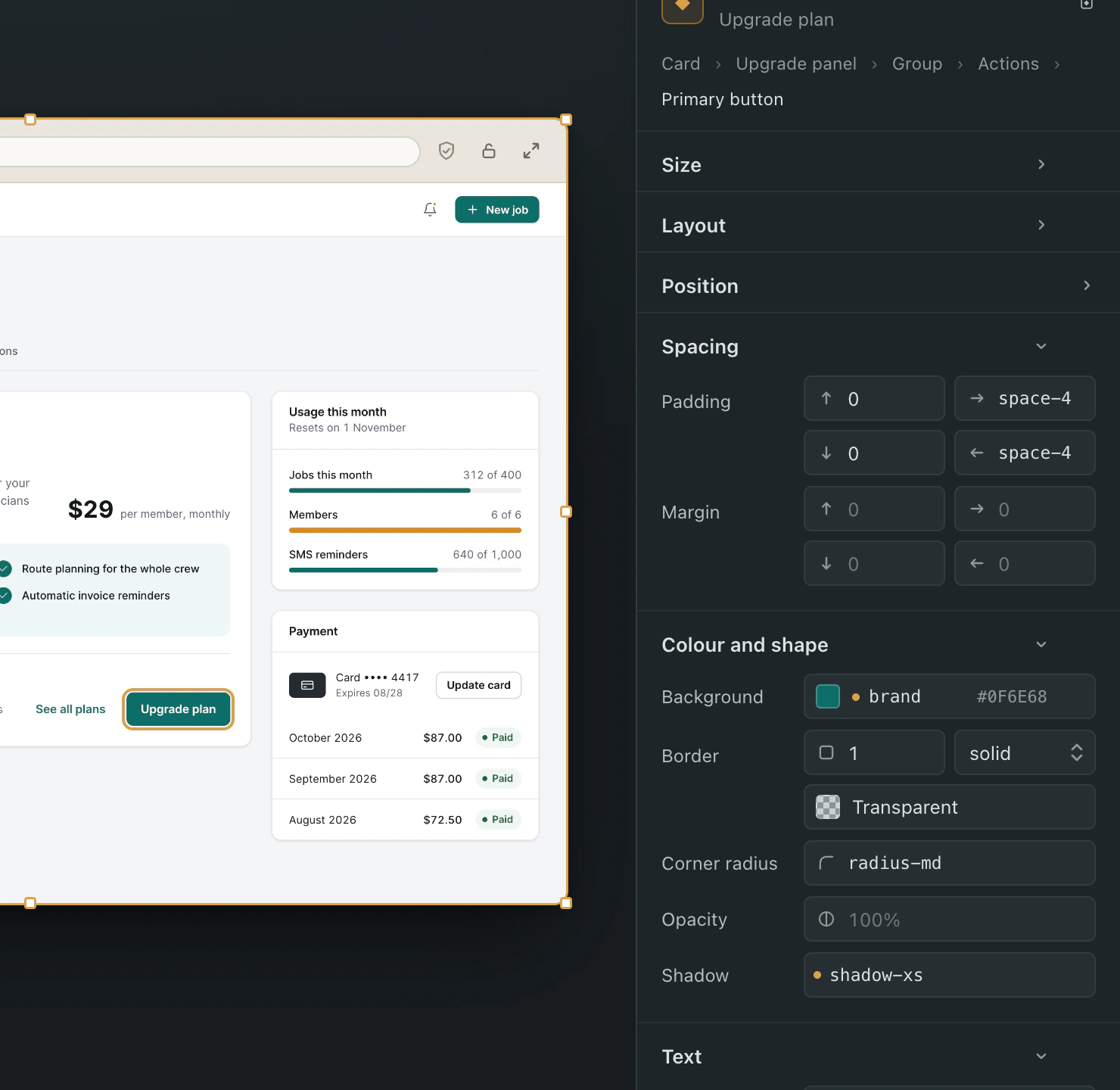
Press ⌘I and click. The panel shows the element's component, its text as it appears on screen, and its properties where the component exposes them. Then its appearance, read the way your code wrote it: a token is shown by its name, a width set to fill is Fill, a width that hugs its content is Hug. A property no rule sets is empty, not a number the browser computed. An inherited value is dimmed and names where it comes from; click the mark to go there. A property the component sets in code says so and sends you there.
For developers: 100% reads as Fill, fit-content as Hug,var(--space-4) as space-4, and a clamp() is shown as aclamp().
Four kinds of thing can be changed from the panel: a design token, the words on screen, a component's own properties where it is used, and a value written directly on one element. The last one is what makes everything editable, and it stays narrow on purpose. It changes what is already written there, never adds something new, and says so when a value is worked out as the product runs rather than written down.
The assistant
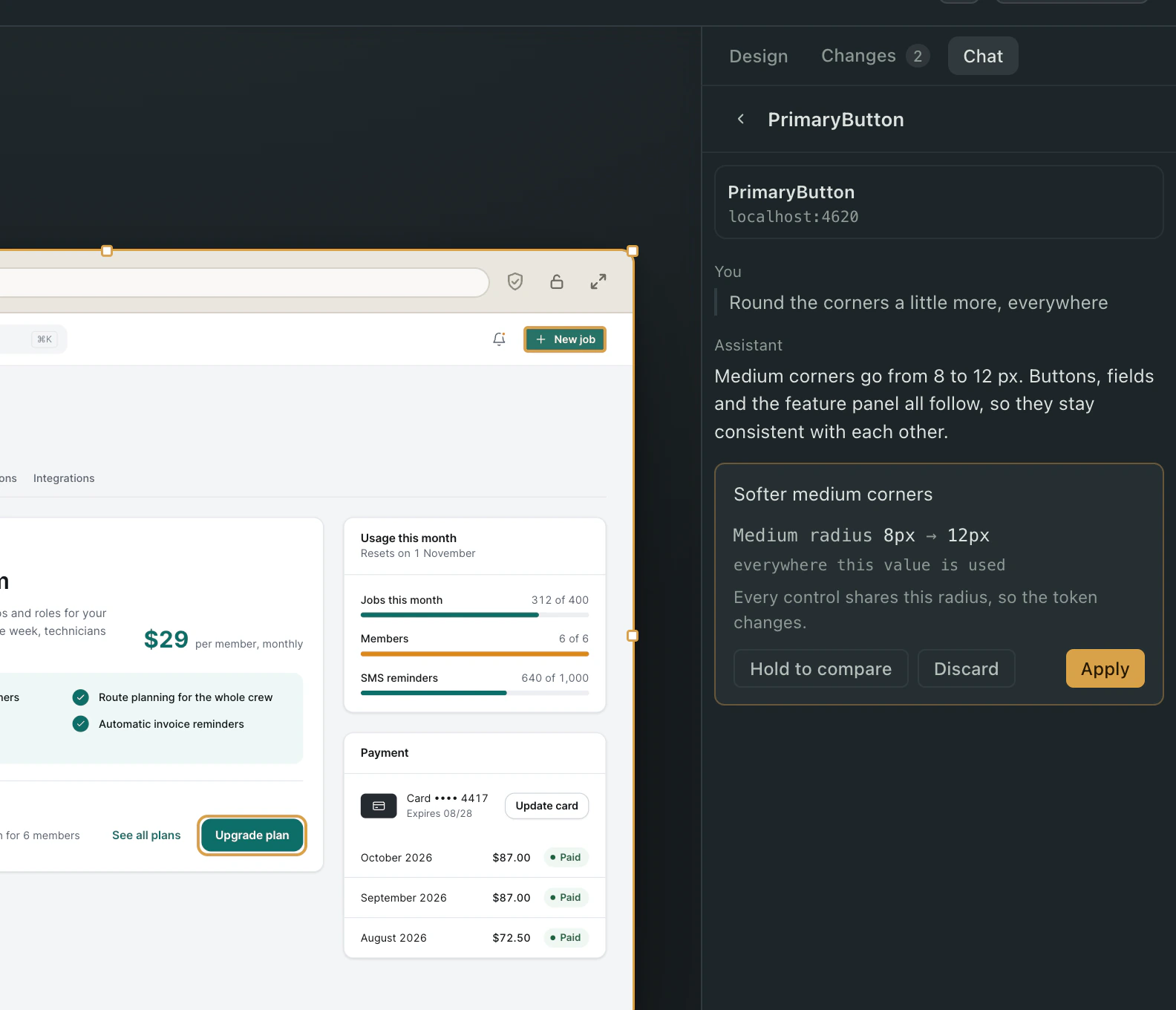
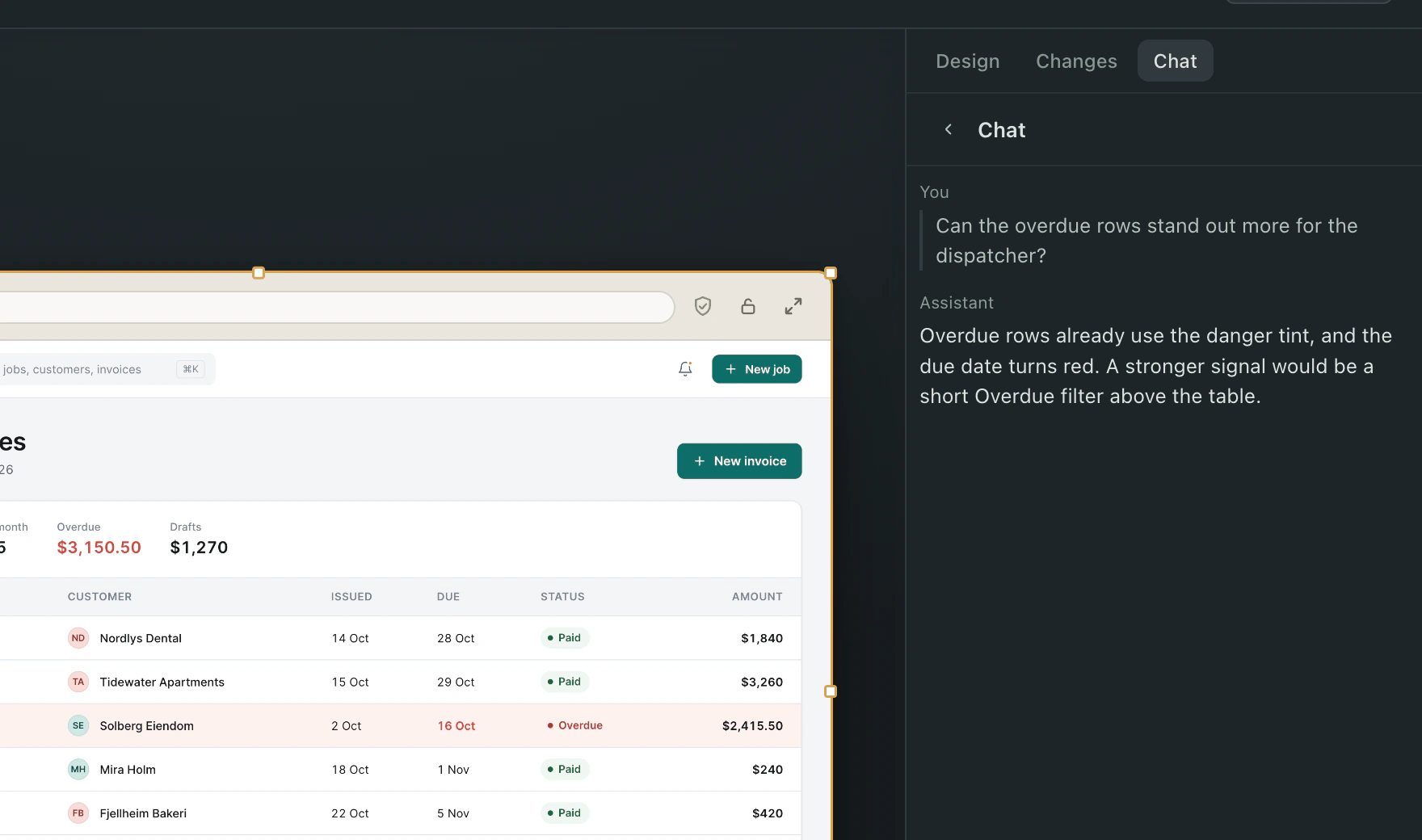
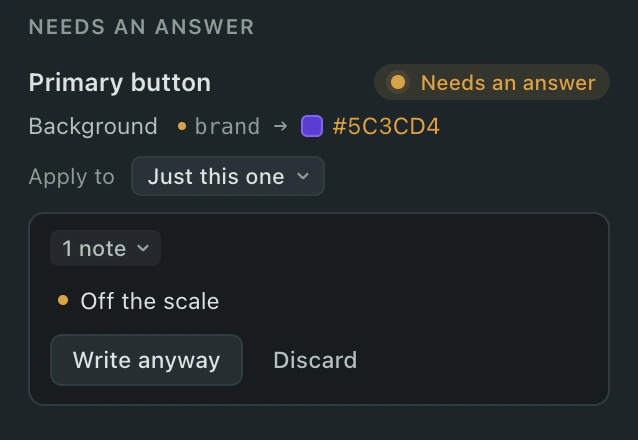
The chat is scoped to what you selected. Ask for a change in words and it is shown on the product before it is written. When the request is bigger than it looks, the assistant says so and names the simpler version. When the project's rules say "tokens, not raw colours" and you asked for a raw colour, it asks which token you meant rather than guessing. It knows which files your role may change, so it says what it cannot do instead of proposing something that gets refused later.
Changes and branches
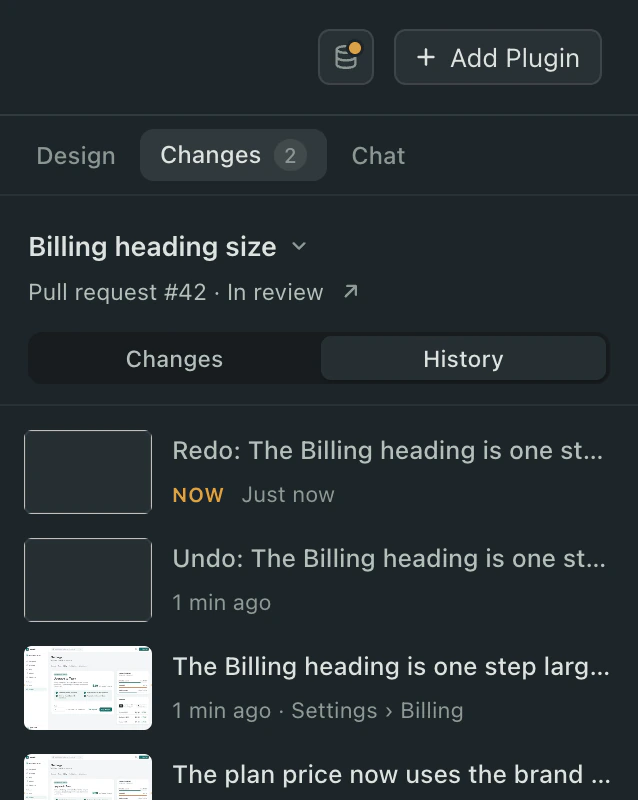
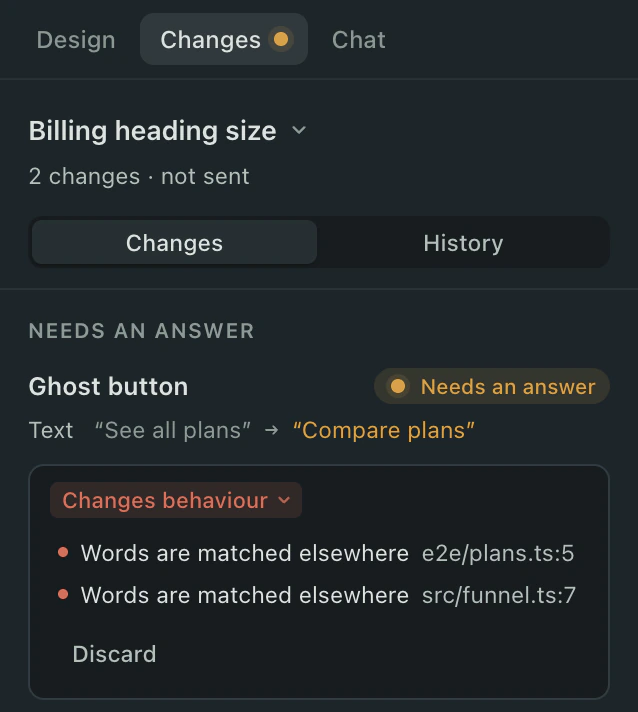
Your first change on the shipping branch starts a branch of your own, named for what you touched ("Primary button background"), never for a hex value. The Changes tab lists each change as a row: the element, the property, the old value and the new, and its state. Undo is a word on the row. ⌘Z takes back the last step. History shows every step and Go Back restores one.
Apply to sits beside the change: just this one, all six in the sidebar, all twelve on this page, every button. The default is this one. Change your mind after it is written and the change is taken back and written again at the new reach.
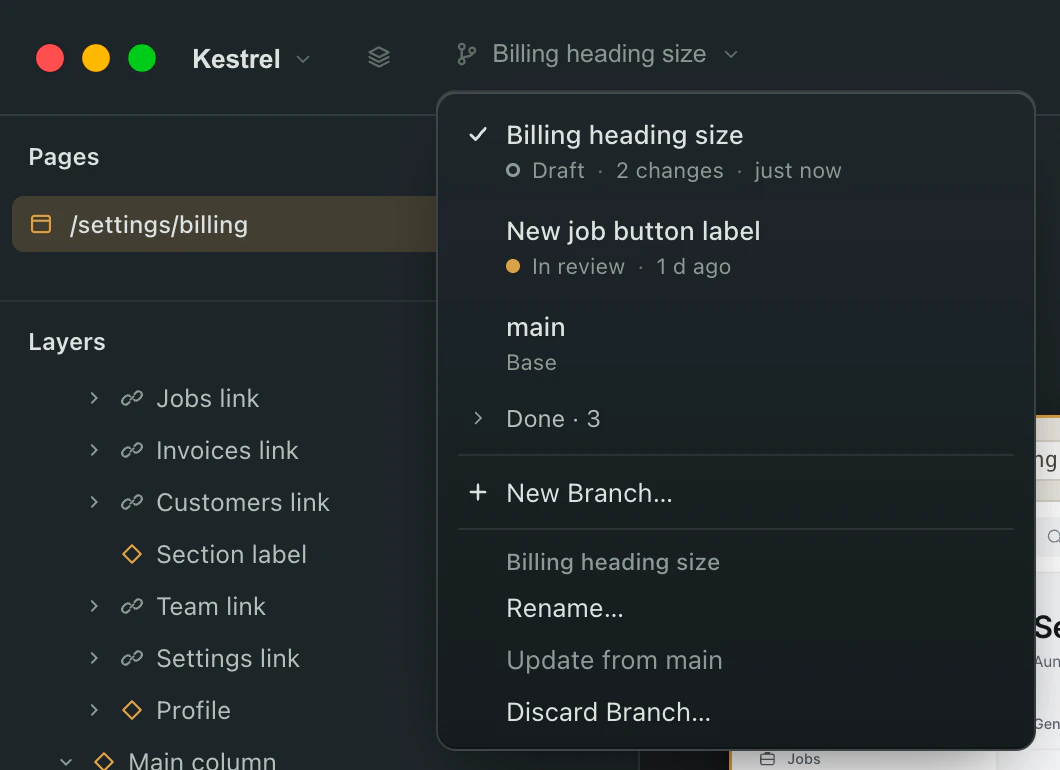
Branches live in the title bar. The menu shows the one you are on, the ones in review with their pull request state read from GitHub, the shipping branch under its own name, and finished work folded under Done. No branch is deleted without you confirming.
Send for Review
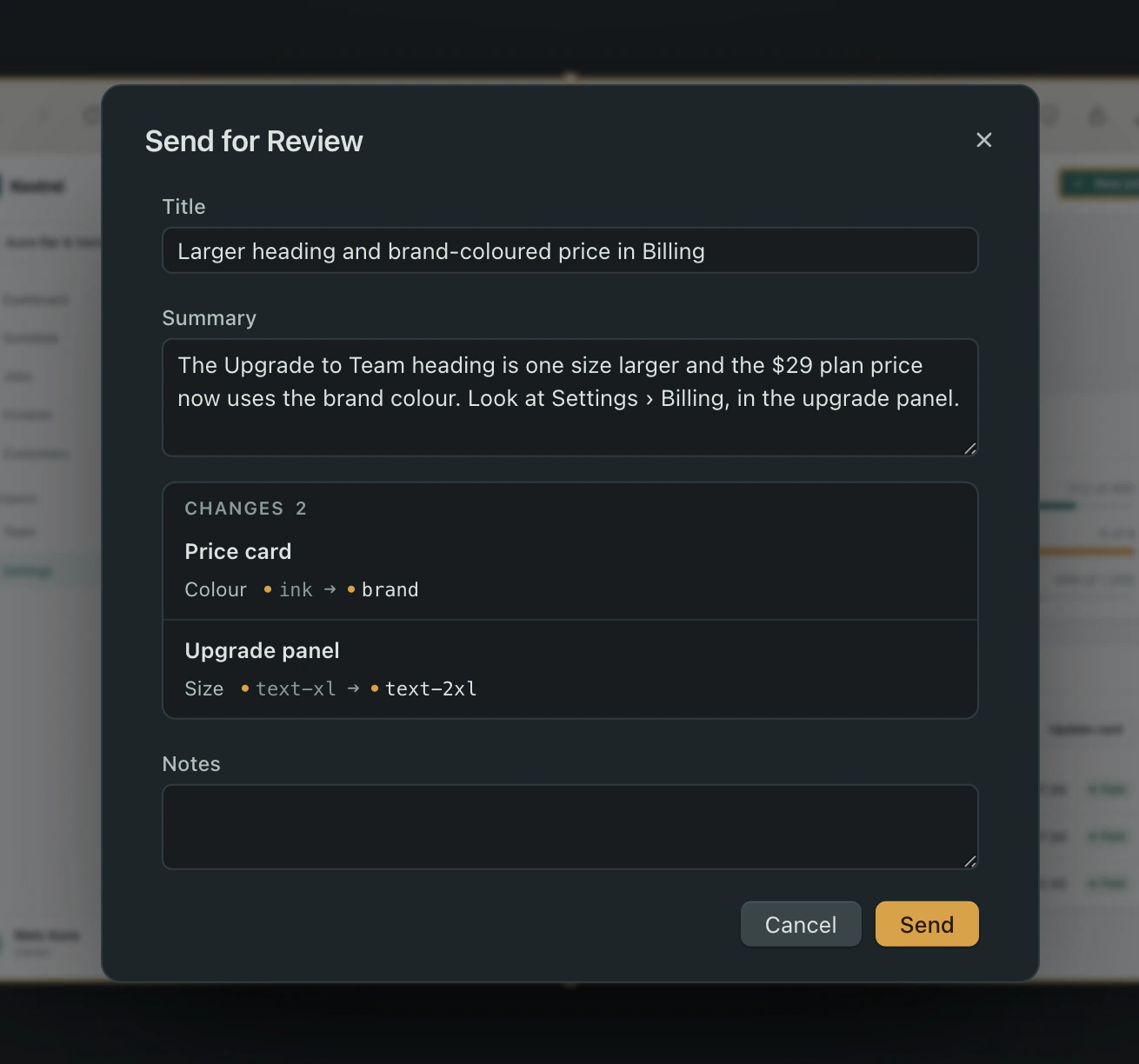
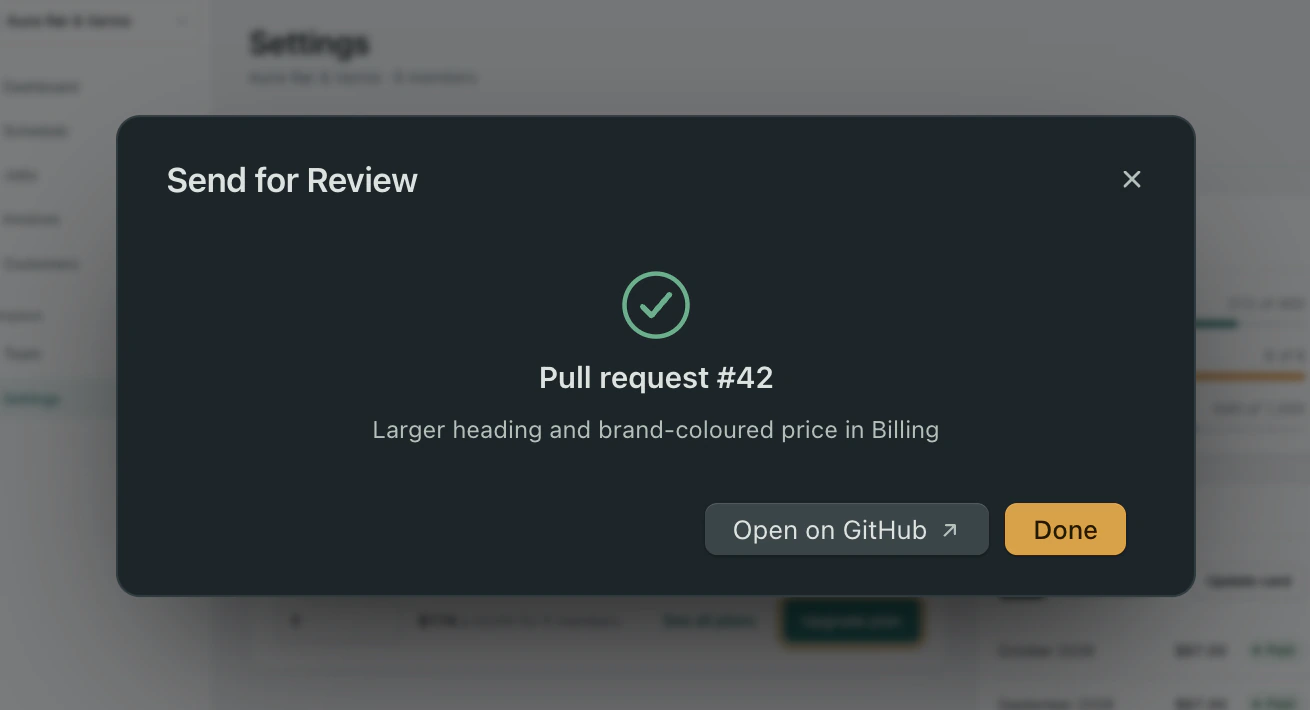
The sheet opens with the title and summary already written from your changes. Below them, the changes that go, each with its old and new value and its page. Notes are optional. Send makes the pull request and shows its number. If it could not be sent, it says why and keeps everything on the branch, so nothing is lost.
The pull request body has the summary, what changed with values and pages, your notes, where to look, which checks ran, and for a linked design system, which pull request this one depends on.
Pull requests go out under your own GitHub login. The first time, the app asks you to connect GitHub; it opens in your browser, you approve, and that is the last time it asks.
Checks
Your change is already on screen before it is written, so the checks run against what you see. What they look for: anything that disappeared, text on top of text, words cut off, a control smaller than 24 by 24, something off the edge, a page that started scrolling sideways, and contrast. Then the questions in the order that matters: does it still work, what does it cost the system, is there a simpler way.
Comments
Draw a comment around any area of the product. It stays pinned to the element it was drawn on, re-anchors when the page changes, and lives in a panel with threads and resolution. Comments are kept on your Mac for now; they do not travel with the branch yet.
The component editor
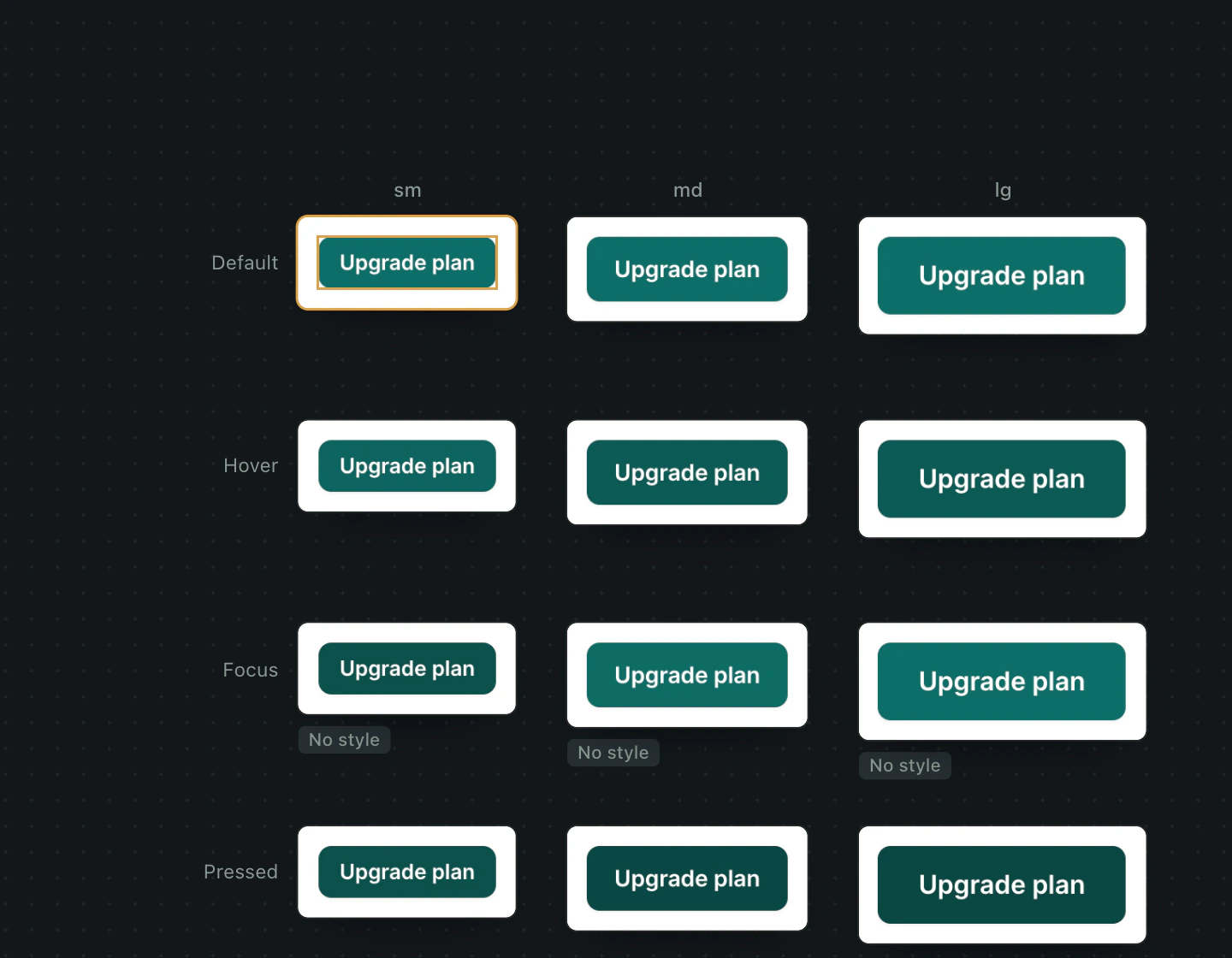
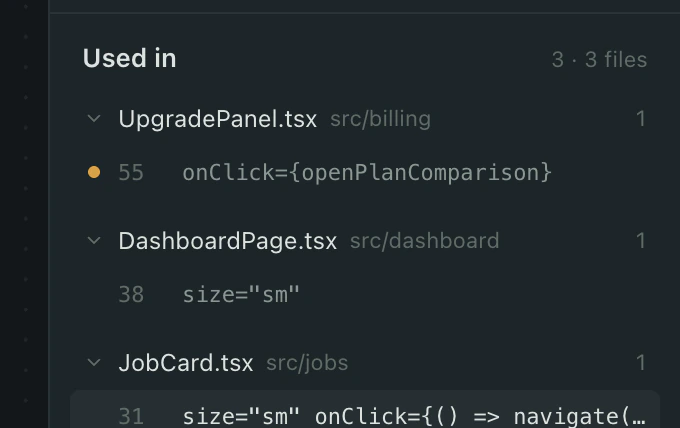
Open a component from the panel. It is shown in its real context with its real props, and beside it every size by every state (default, hover, focus, pressed, disabled) by light and dark, with long and empty text to see what breaks. A state the stylesheet never styled says "No style". Under it, every file and line the component is used from. Keep writes your edits through the same Changes pipeline, at the reach you choose.
Two limits worth knowing. Props as controls need the component's types to be readable (plain unions, booleans and cva-style variant maps), and a production build shows states and schemes but not props.
Linked repositories
A design system in its own repository is linked in Project Settings. A component the product installs from it is read and changed in that repository's source, shown on the product by building it, and sent for review there. Two pull requests from one branch, the system first. A monorepo needs no link.
Plugins
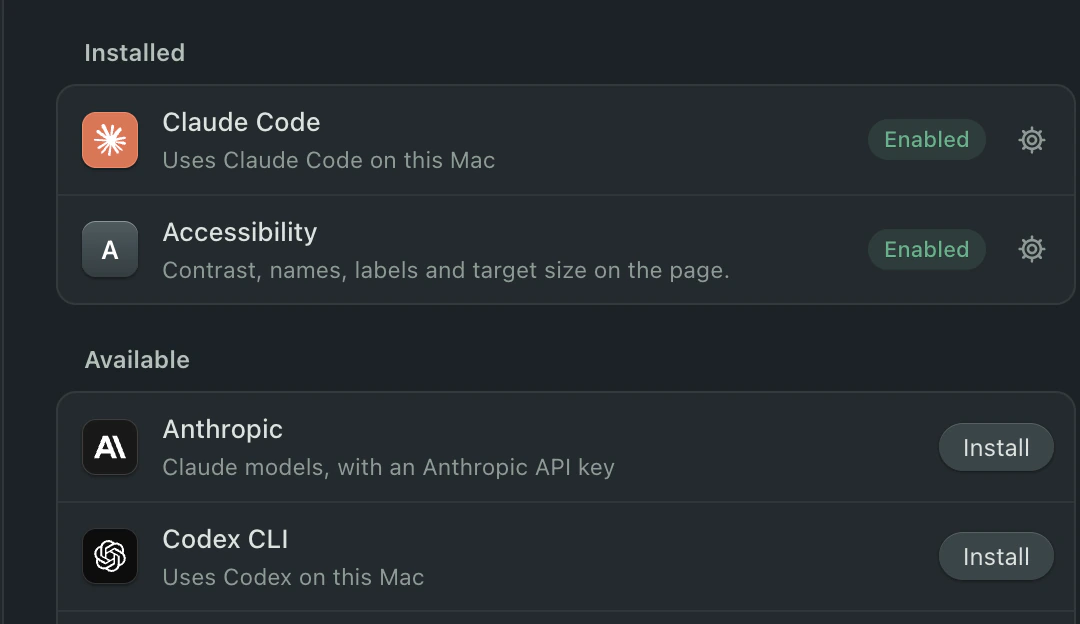
Almost everything in the app is a plugin: the AI engines, the source mapping, the checks, even Git. A plugin declares everything it can do before it runs, so you see what you are installing, and what it may do to the page has a switch. A plugin that changes the page goes through the same preview, the same questions and the same undo as your own edits.
Try it on your own product.
You are on the list. One email when the first build is out. It has a link to take your address off.